Try the layout with a sample card
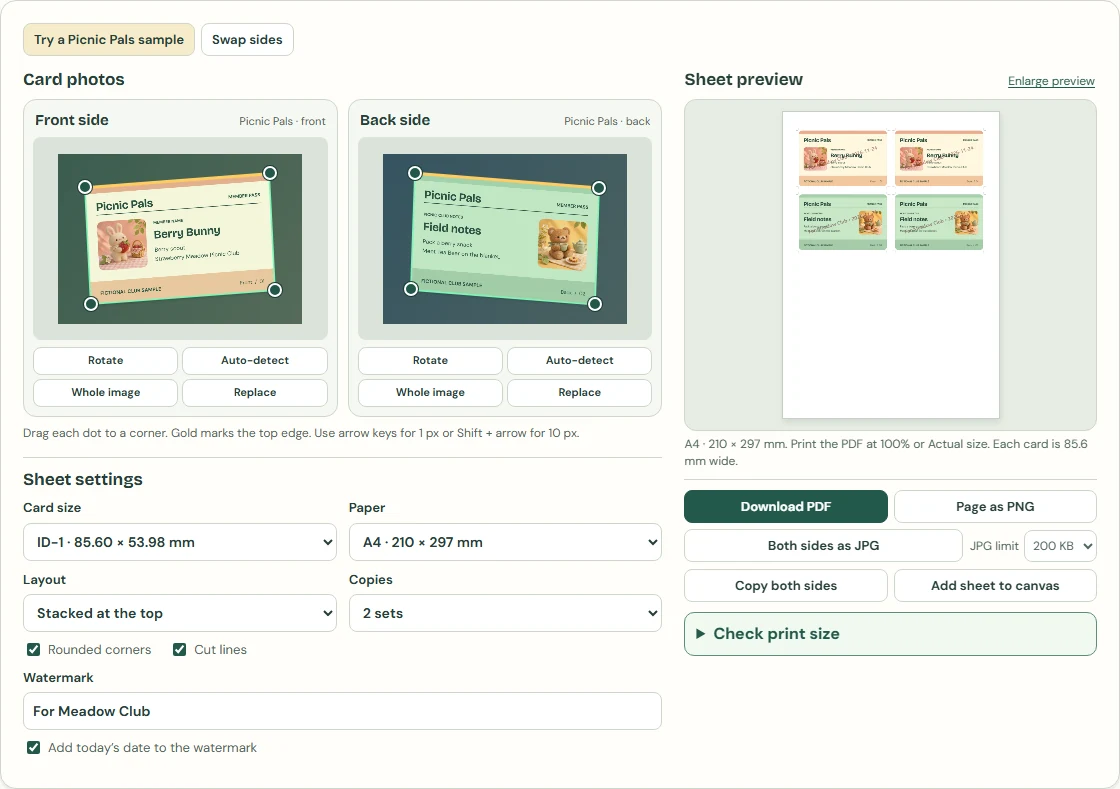
We use a fictional club pass so you can try the editor without sharing anyone’s ID. The sample fits two front-and-back sets on A4. Move a corner or change the watermark to see what your own sheet would look like.
Straighten both sides, fit them to one sheet and check your printer’s scale. Your card photos stay in this browser.
PNG · JPG/JPEG · WebP · GIF · AVIF · SVG · BMP
Photos stay on your device. No uploads.
Two photos taken at different distances can still print at the same size. Set the edges of each card, then choose the physical card size and the paper in your printer.
We use a fictional club pass so you can try the editor without sharing anyone’s ID. The sample fits two front-and-back sets on A4. Move a corner or change the watermark to see what your own sheet would look like.
Choose the front photo and the back photo. Rotate a side if the lettering is sideways. Use Swap sides if the two photos are in the wrong slots.
Move the four corner handles onto the card. Auto-detect can place them for you. Check the gold top edge and fine-tune a selected handle with the arrow keys.
Choose ID-1, ID-2 or ID-3 and match the paper to your printer. Stack the sides, place them side by side or put one on each half for folding. Check the preview before downloading.
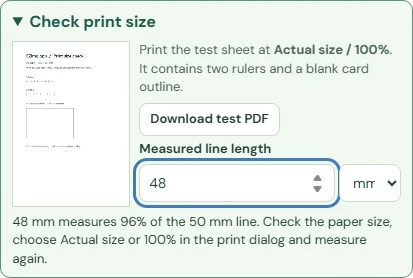
Choose the paper in your printer and open Check print size. The test PDF has a blank card outline and two rulers. Print at Actual size, then enter the length of the 50 mm or 2 inch line to see how much the page was scaled.
| Card setting | Printed dimensions | Choosing the size |
|---|---|---|
| ID-1 | 85.60 × 53.98 mm | The familiar credit-card size. Use it for a wallet card that matches these measurements. |
| ID-2 | 105 × 74 mm | A larger identification card. Check both sides with a ruler before printing. |
| ID-3 | 125 × 88 mm | Passport-page size. Match the page dimensions and check what the recipient accepts. |
Place the card on a contrasting, flat surface. Keep all four corners visible, avoid glare and move the gold top edge onto the top of the card.
Match A4, US Letter or US Legal to the paper in your printer. Stack the faces vertically, place them side by side or put one on each half to fold. The preview tells you when a layout or number of copies exceeds the page.
When the recipient accepts a watermarked copy, enter the purpose and optionally add today’s date. Inspect both faces in the preview and keep required details readable.
Choose Both sides as JPG and the file-size limit requested by the form. The page PDF is intended for printing at the physical dimensions shown above.